


 Cover image via
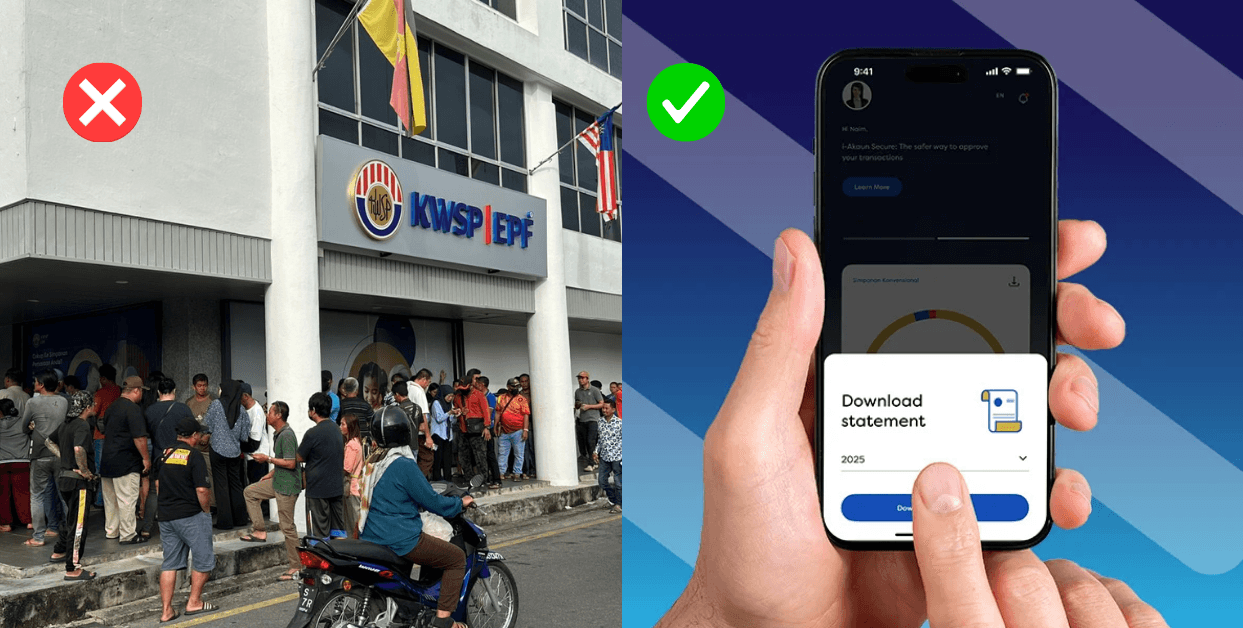
Want to check your EPF savings without lining up at a kiosk or branch? Here's how to do it online, step by step.
Whether you're planning for retirement or just trying to keep track of your contributions, knowing how to access your EPF i-Akaun can save you time and give you peace of mind. i-Akaun is the Employees Provident Fund's online portal that lets members view their EPF savings, check contribution history, update details, and more, all from your phone or computer.
Here's a simple guide on how to register, log in, and check your EPF balance using i-Akaun.
Section 1: How to register and activate your EPF i-Akaun
Registering for i-Akaun allows you to view your EPF savings and manage various transactions. There are several ways to register and activate your account, each with specific requirements.
Important Note: While initial registration can often be done online, full i-Akaun functionality (especially for withdrawals and transactions) often requires a one-time fingerprint verification at an EPF Self-Service Terminal (SST) or EPF Office. This ensures the security of your savings.
Method 1: Registering via the KWSP i-Akaun App
This is the most convenient method for eligible Malaysian citizens (MyKad holders) and Permanent Residents (MyPR holders).
Requirements:
- MyKad or MyPR
- A smartphone with the KWSP i-Akaun app installed
- An active mobile phone number registered under your name
Steps:
- Download the KWSP i-Akaun app: Search for "KWSP i-Akaun" on Google Play Store (Android) or Apple App Store (iOS)
- Open the app and select "Register i-Akaun": Look for the "Not yet Registered?" or "Register i-Akaun" option
- Perform e-KYC (Electronic Know Your Customer):
– You will be prompted to scan your MyKad/MyPR
– Follow the on-screen instructions for a liveness check (e.g. take a selfie)
– Enter your personal details as requested - Verify your mobile number: A One-Time Password (OTP) will be sent to your registered mobile number for verification
- Create your User ID and password: Choose a secure User ID and a strong password
- Set up your Secure Image and Secret Phrase: These are additional security features for logging in
- Confirm registration: Once completed, you will have access to your i-Akaun
Important: While registered via the app, for full transactional capabilities (like making withdrawals), you might still need to visit an EPF SST or office for fingerprint verification.
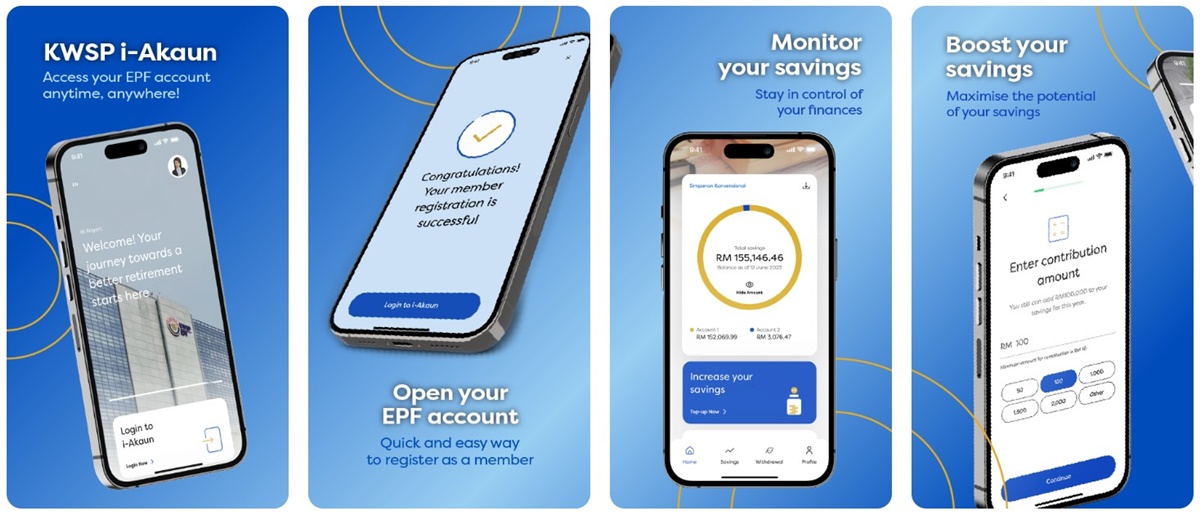
Image via Google Play Store
Method 2: Registering/Activating via EPF Self-Service Terminal (SST)
This method is commonly used for first-time activation or if you're unable to use the e-KYC process.
Requirements:
- Your MyKad/MyPR (for Malaysian citizens/PRs) or passport (for non-Malaysians)
- Your registered mobile phone number
Steps:
- Locate an EPF SST: These terminals are available at all EPF offices and various other locations (e.g. shopping malls). You can find the full list of EPF SST locations here.
- Insert your MyKad/MyPR or provide necessary details: Follow the instructions on the SST screen
- Perform fingerprint verification: Place your thumb or finger on the scanner as instructed
- Receive your temporary password: The SST will provide you with a temporary password and instructions to activate your account online within a specific timeframe (usually 30 days)
- Log in to the i-Akaun portal: Go to the official EPF website and click on the "i-Akaun (Member)" login
- Change your password: Upon your first login with the temporary password, you will be prompted to create your own User ID, new password, secure image, and secret phrase

Image via UTC Kelantan RASMI (Facebook)
Method 3: Registering/Activating at an EPF Office
This method is recommended for non-Malaysian citizens, or if you encounter issues with the SST or e-KYC process.
Requirements:
- For Malaysian Citizens/PRs: MyKad/MyPR
- For Non-Malaysian Citizens: Original Passport, KWSP 3 (Daftar) Form (obtainable from EPF or employer), and a valid work permit/visa
- Your registered mobile phone number
Steps:
- Visit any EPF branch: Bring the required documents
- Speak to an EPF officer: Inform them you wish to register or activate your i-Akaun
- Complete verification: The officer will assist you with identity and fingerprint verification
- Receive temporary password: You will be given a temporary password and instructions to activate your account online
- Log in and set up: Follow the same steps as Method 2 (log in to the i-Akaun portal and change your password)
Automatic registration by employer (for new members)
If you are a new EPF member and your employer has made your first contribution, you are automatically registered with EPF. However, you still need to activate your i-Akaun using one of the methods above (preferably SST or EPF Office for fingerprint verification) to get online access.
Image via Salhani Ibrahim/NSTP
Section 2: How to log in to your EPF i-Akaun
Once your i-Akaun is registered and activated, logging in is a straightforward process whether you use the web portal or the mobile app.
Key Security Feature: i-Akaun Secure (app-based authentication)
EPF has enhanced security by replacing SMS TAC (Transaction Authorisation Code) with i-Akaun Secure for approving most transactions. It's a crucial feature you should activate.
How to activate i-Akaun Secure:
- Log in to your i-Akaun (web portal or app)
- Navigate to the security settings or look for a prompt to activate i-Akaun Secure
- Follow the on-screen instructions to link your device. This usually involves a one-time SMS TAC for initial device linking.
Benefits of i-Akaun Secure:
- Faster approvals: Approve transactions with a single tap on your smartphone
- Enhanced security: Reduces the risk of SMS interception
- Convenience: No need to wait for SMS TACs
Logging In via the EPF Website:
- Go to the official EPF website: Click here to go to the official EPF website
- Click on "i-Akaun (Member)": You'll find this prominent login option
- Enter your User ID: Type in the User ID you created during registration
- Verify your Secure Image and Secret Phrase: Ensure the secure image displayed matches the one you set up. Then, enter your secret phrase. This is a crucial step to prevent phishing.
- Enter your Password: Type in your password
- Click "Log In": You will be redirected to your i-Akaun dashboard
Logging in via the KWSP i-Akaun app:
- Open the KWSP i-Akaun app: Launch the app on your smartphone
- Enter your User ID: Type in your User ID
- Verify Secure Image and Secret Phrase: Similar to the web portal, confirm your secure image and enter your secret phrase
- Enter your Password: Input your password
- Tap "Log In": You will be taken to your i-Akaun dashboard on the app
Common Login Issues & Solutions:
- Forgotten User ID/Password: Use the "Forgot User ID" or "Forgot Password" links on the i-Akaun login page or app. You may need to answer security questions or perform fingerprint verification at an SST.
- Account Locked: If you attempt to log in unsuccessfully multiple times, your account may be temporarily locked. Contact EPF Customer Service (03-8922 6000) for assistance.
- Secure Image/Secret Phrase Mismatch: Double-check these details carefully. If you suspect a phishing attempt (the image doesn't match), do NOT proceed with login and report it to EPF immediately.
- Issues with i-Akaun Secure: Ensure your Internet connection is stable and that you haven't linked your i-Akaun Secure to another device. You can re-link your device if necessary (requires re-verification).
Section 3: How to check your EPF balance online
Once logged into your i-Akaun, checking your balance is one of the first things you'll see.
Steps to Check Your Balance:
- Log in to your i-Akaun: Use either the EPF web portal or the KWSP i-Akaun app as described above
- View Dashboard/Summary: Your current EPF balance will typically be displayed prominently on the main dashboard or home screen
Detailed Breakdown: You will usually see your balance broken down into:
- Akaun 1 (Account 1): For retirement savings (cannot be withdrawn until age 55, with some exceptions)
- Akaun 2 (Account 2): For specific pre-retirement withdrawals (e.g., housing, education, health)
- Akaun Fleksibel (Account 3): This is a new account (introduced May 11, 2024) where 10% of new contributions are allocated, and can be withdrawn at any time
Additional Information You Can Access:
Beyond your current balance, i-Akaun allows you to:
- View annual statements: Access and download your EPF statements for previous years
- Check contribution history: See a detailed breakdown of all contributions made by you and your employer
- Update personal information: Ensure your contact details are current
- Apply for withdrawals: Initiate and track the status of various EPF withdrawals (subject to eligibility and verification)
- Check Nomination Details: Review your nominated beneficiaries
- Register for e-Dividend: If applicable
Section 4: What is "View Mode" vs. "Full Mode" in i-Akaun?
When accessing your i-Akaun, especially after initial setup, you might encounter these terms:
- View Mode: This access allows you to view your balance, statements, and other information, but you cannot perform any transactions or withdrawals. This mode is typical if you've registered online but haven't completed fingerprint verification.
- Full Mode: This access grants you complete control over your i-Akaun, including the ability to apply for withdrawals, update details, and manage other transactions. To achieve Full Mode, you almost always need to complete a one-time fingerprint verification at an EPF SST or EPF Office.
Need Further Assistance?
If you encounter any difficulties with your EPF i-Akaun registration, login, or any other services, do not hesitate to contact EPF directly:
EPF Contact Management Centre: 03-8922 6000
Visit an EPF Office: Locate your nearest branch via the EPF website.
EPF Website: www.kwsp.gov.my
By following this guide, you should be well-equipped to manage your EPF savings efficiently and securely through your i-Akaun.

