


 Cover image via
Follow us on Instagram, TikTok, and WhatsApp for the latest stories and breaking news.
If your laptop fan is louder than usual and the base feels hot, you're experiencing one of the most common laptop issues — overheating
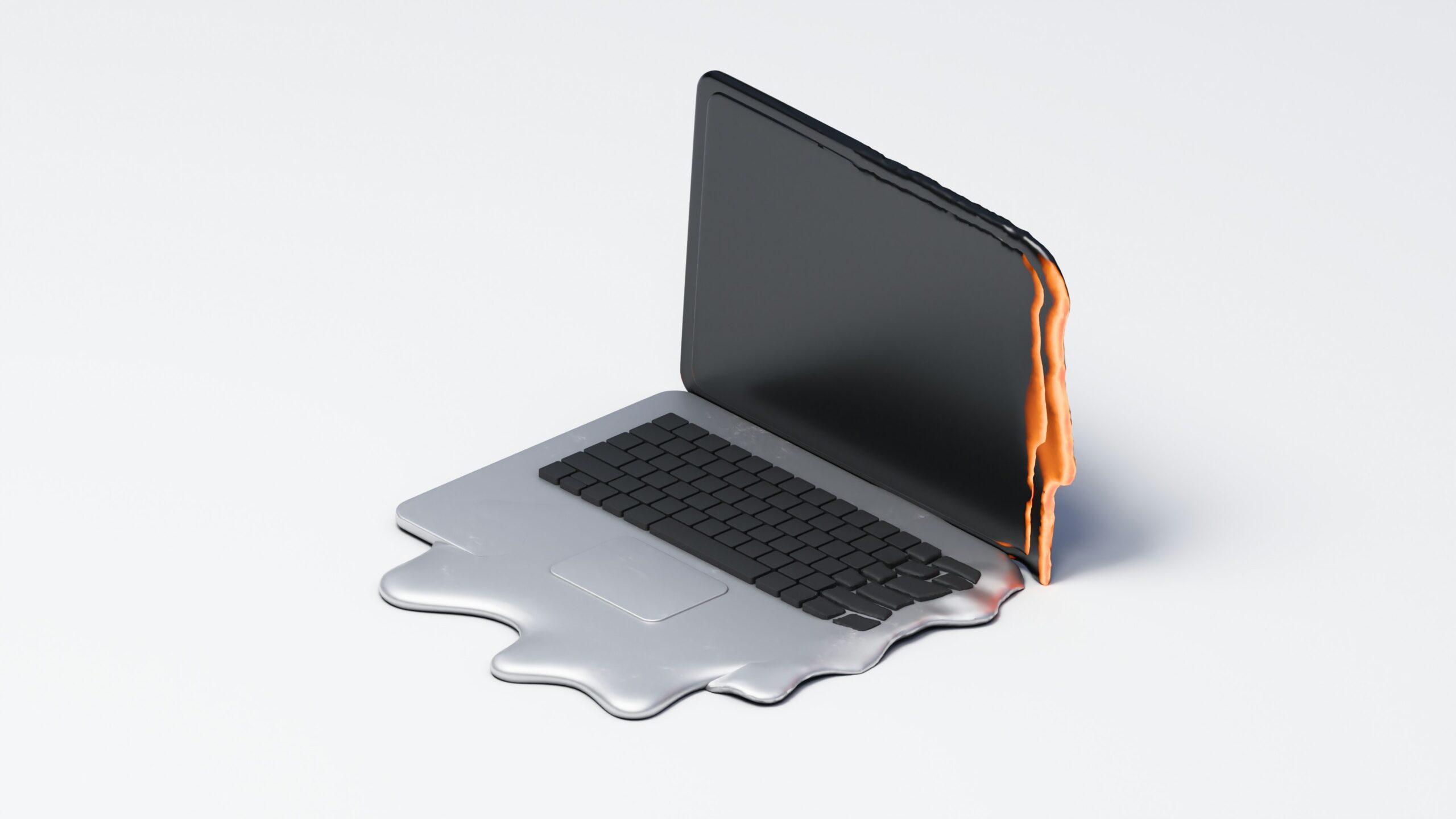
Laptop overheating is super common. While some heat is normal, constant overheating can slow things down, damage components, and shorten your laptop's lifespan.
Here's how to identify the signs, try practical fixes, and know when an upgrade is the better option.
Laptops can overheat due to a number of reasons. This includes:
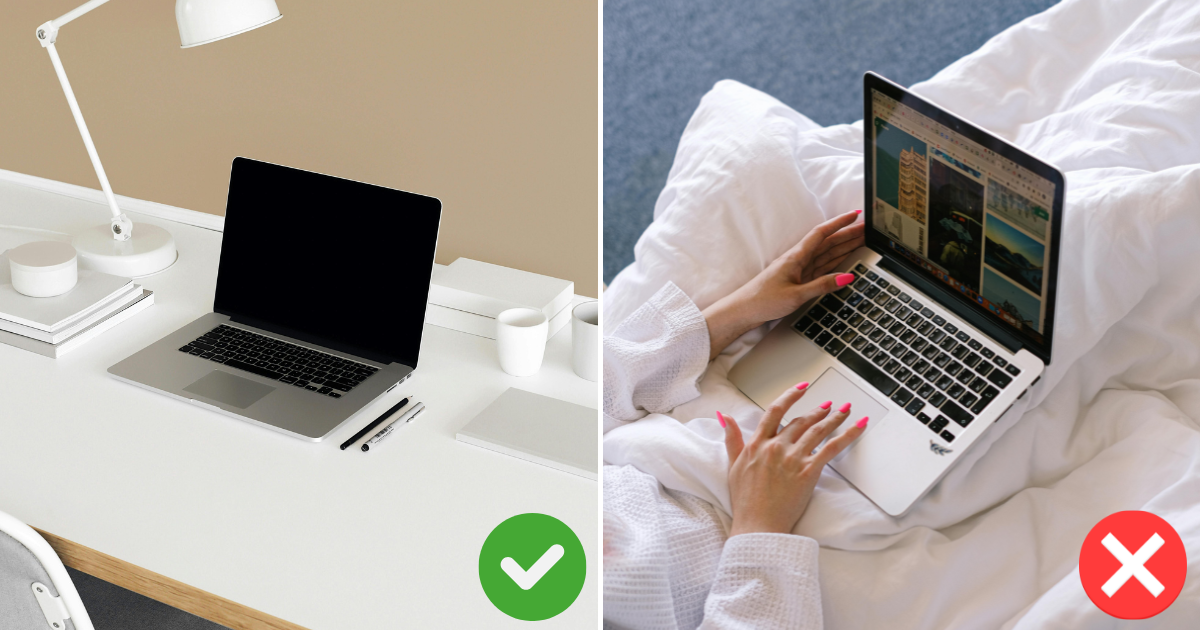
- Blocked airflow: Using your laptop on a bed, couch, or blanket prevents ventilation holes from working properly
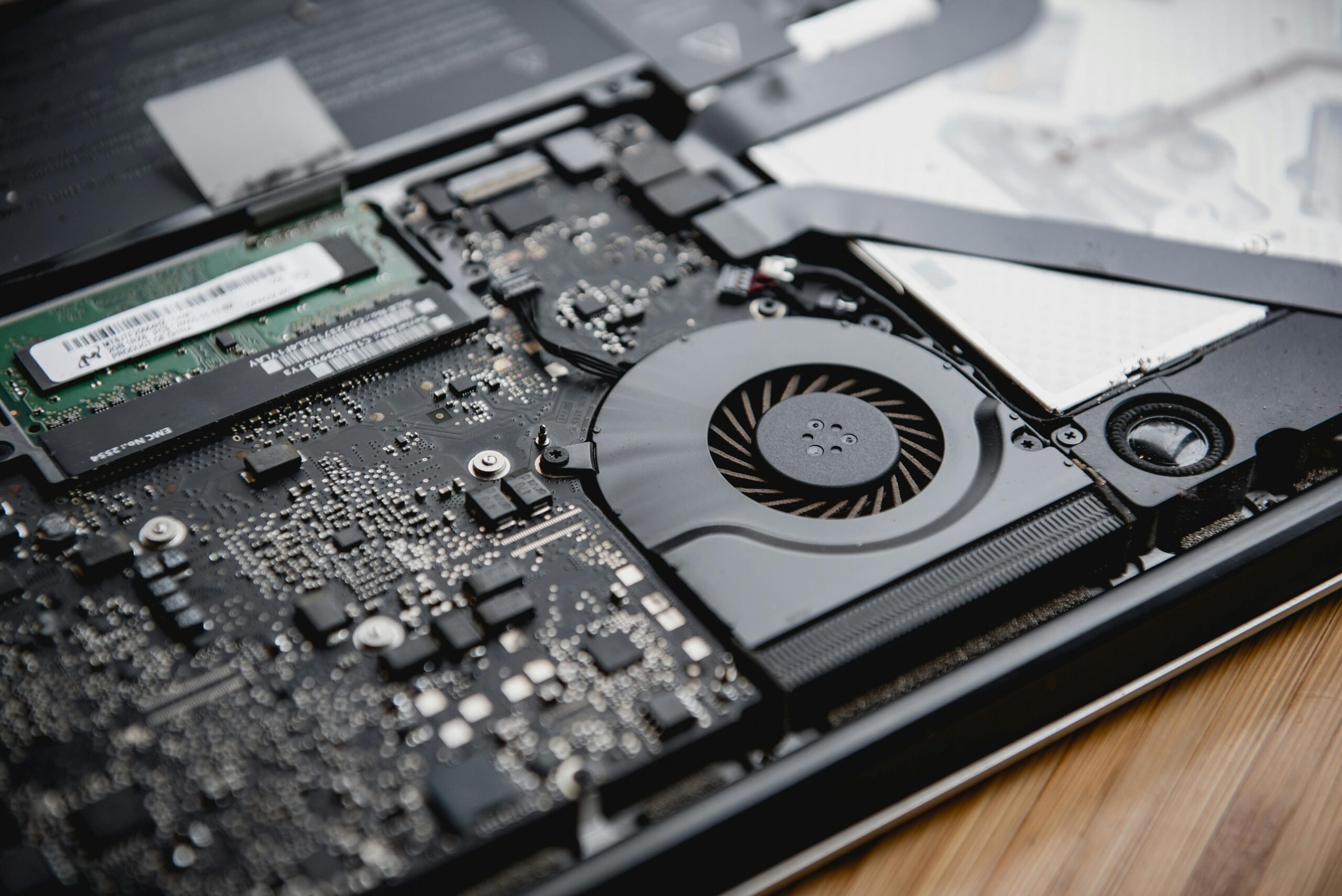
- Dust build-up: Fans clogged with dust can't push hot air out effectively
- Heavy workloads: Tasks like gaming, video editing, or running many apps at once push the system beyond its cooling capacity
- Ageing hardware: Older devices lose efficiency over time, and thermal paste inside may have dried out
While there are other factors as to why a laptop overheats, these are typically the main suspects.
It's important to be able to identify when your laptop is starting to overheat
Common symptoms include louder fan noise, a hot underside or keyboard, and slower performance during simple tasks like web browsing.
In more serious cases, laptops may shut down unexpectedly to protect themselves from heat damage. A battery that drains much faster than usual is another sign the system is under thermal stress.
What can you do when your laptop is overheating?
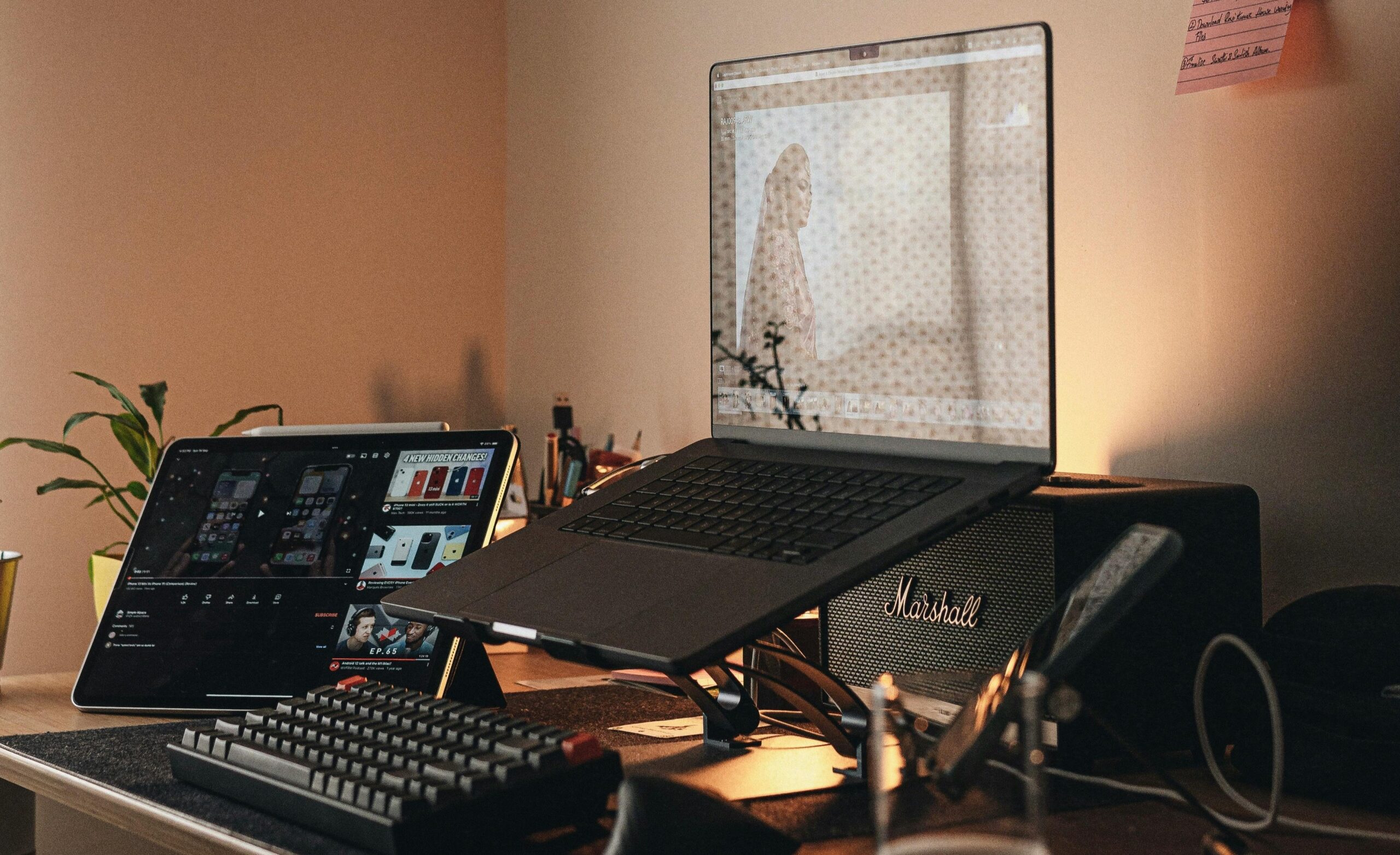
If your laptop is running too hot, here are some practical fixes:
- Use a laptop stand/cooling pad: Using your laptop while it's elevated can increase the efficiency of the cooling system. This is due to better ventilation and increased airflow.
- Clean out the fans: Use a can of compressed air to blow or simply dust the fan to get rid of any excess build-up. This will help the fans work more effectively in drawing out heat from the internal components.
- Close unnecessary apps: Reduce the workload of your laptop's components by closing any unused apps or even browser tabs. This will allow the laptop to run smoother and cooler.
- Update your software: Keep your system updated with the latest features and updates. Software updates aren't just new features, they also improve existing features and also power efficiency.
But if all else fails, it's probably time for you to get a new laptop
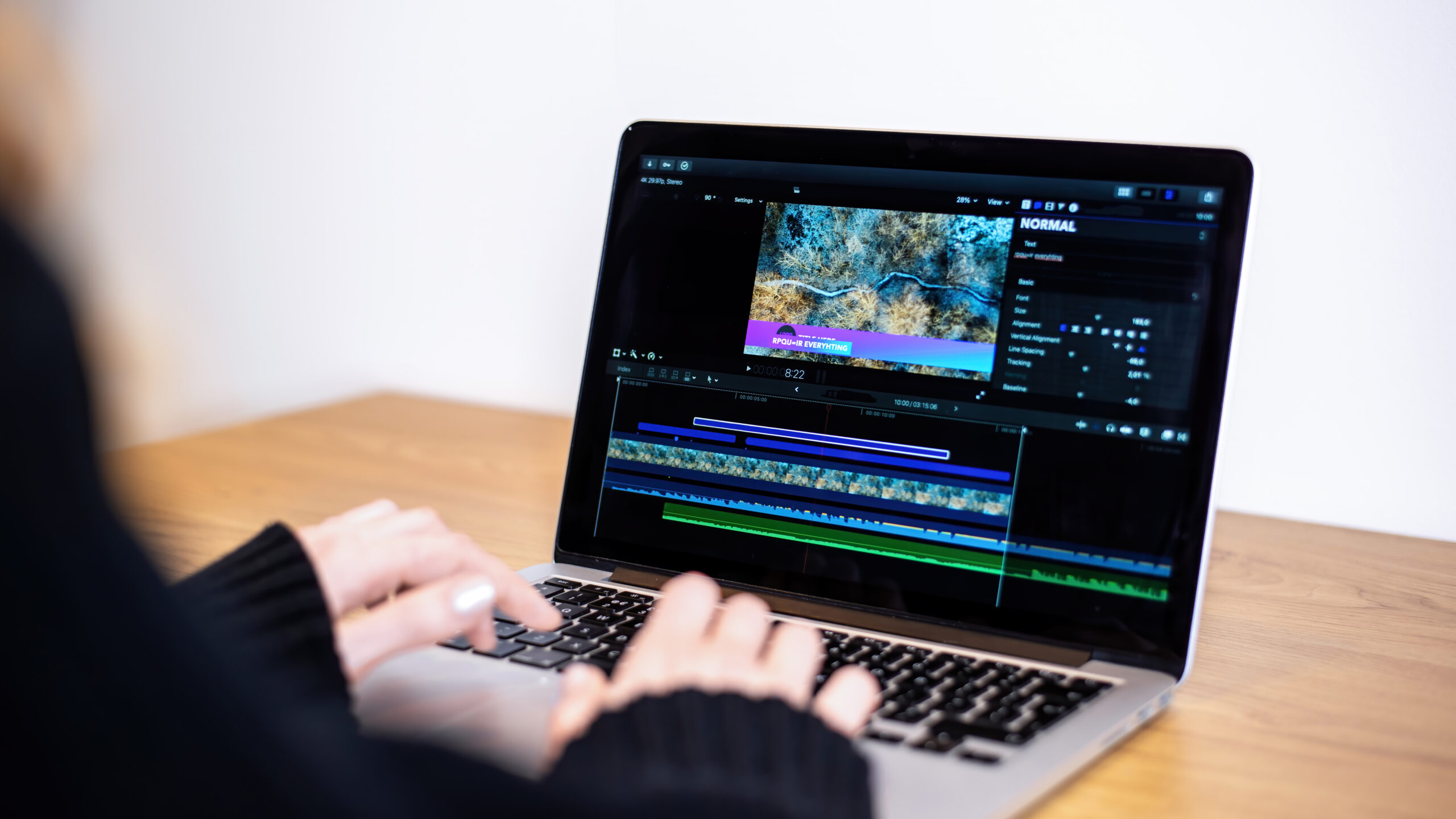
Sometimes, especially when you've been using the same laptop for 10 years or more, it just can't keep up anymore due to ageing hardware. No matter what you do, if the laptop is just constantly overheating, it's probably time to retire it and treat yourself to a newer one.
Newer models are more energy-efficient and run cooler thanks to improved processors and better thermal design. Upgrading often results in a noticeable improvement in both speed and reliability.
If you're using a relatively new laptop, taking care of it early on will reduce the chances of overheating issues down the road
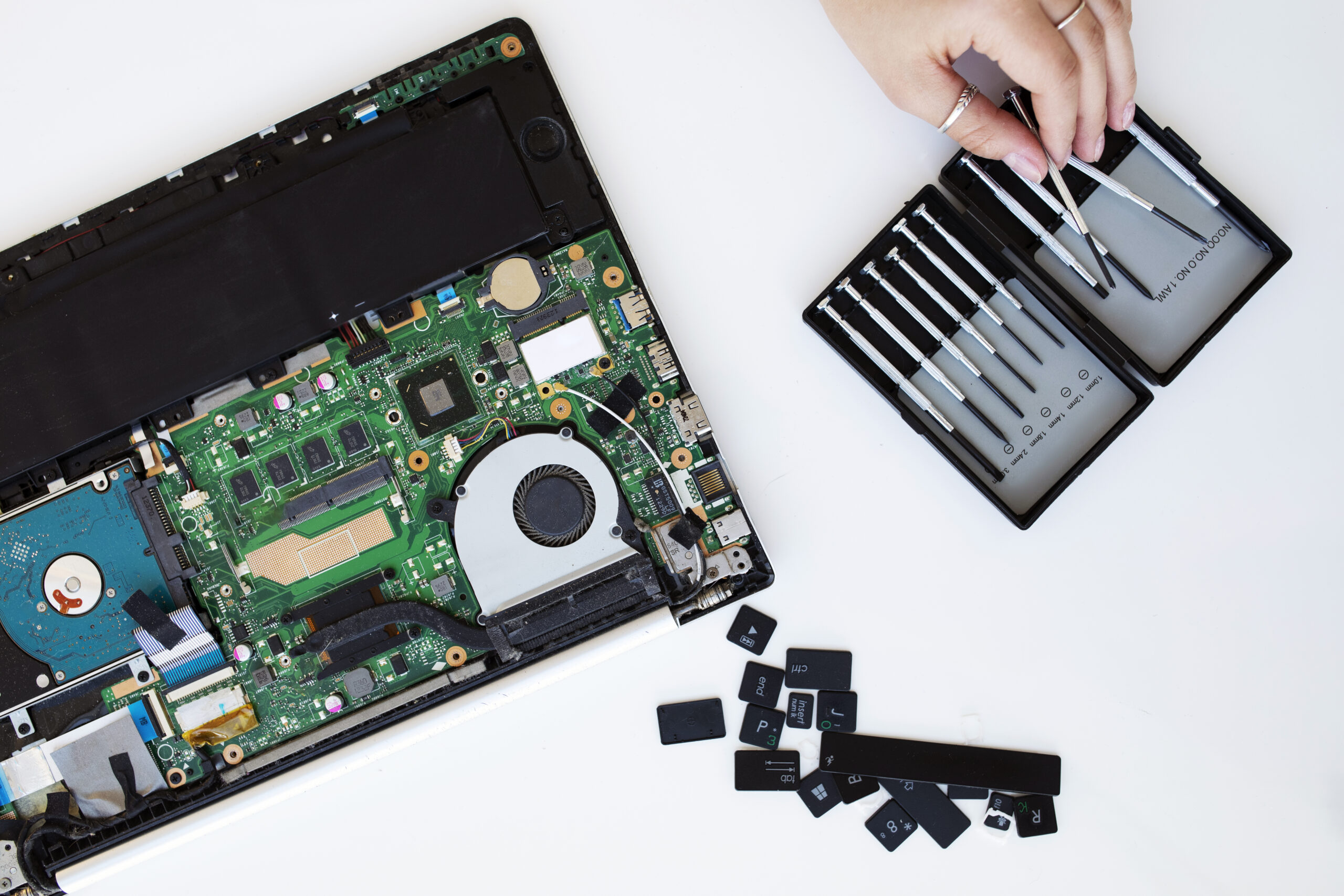
Simple habits can extend the life of your laptop. Use it on a table or desk instead of soft surfaces, and avoid placing it directly under the sun or in hot environments. Clean the vents and fans every few months to keep dust from building up.
With consistent care, you can reduce the risk of overheating and keep your laptop running smoothly for longer.
