


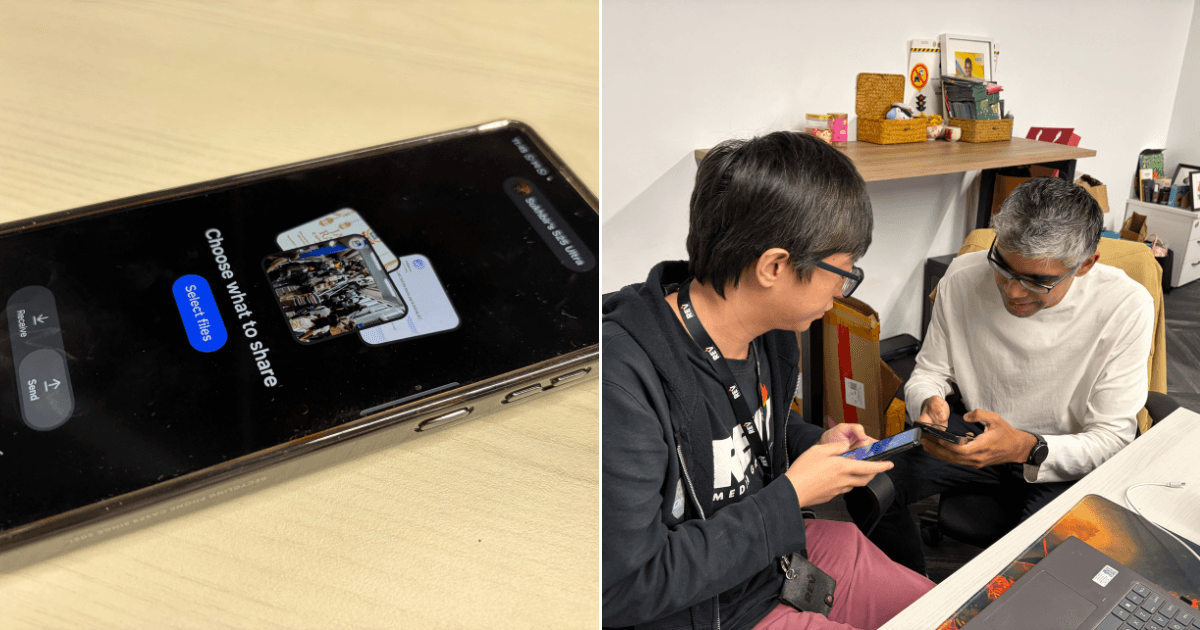
 Cover image via Anne Nunis / SAYS
Follow us on Instagram, TikTok, and WhatsApp for the latest stories and breaking news.
Samsung's One UI 8.5 update now finally allows Galaxy S26 users to send files to iPhones via Quick Share
If you are rocking an S26, you can now send files directly to iPhones as if they are part of the family.
Here is a simple guide to bridging the Android-iOS gap without sacrificing quality, especially for images and videos.
STEP 1: Enable the 'Share with Apple devices' Toggle on your Samsung Galaxy S26
Before you start, tell your Samsung that it is okay to talk to Apple devices.
1.1: Pull down your notification shade and tap the Settings (gear) icon
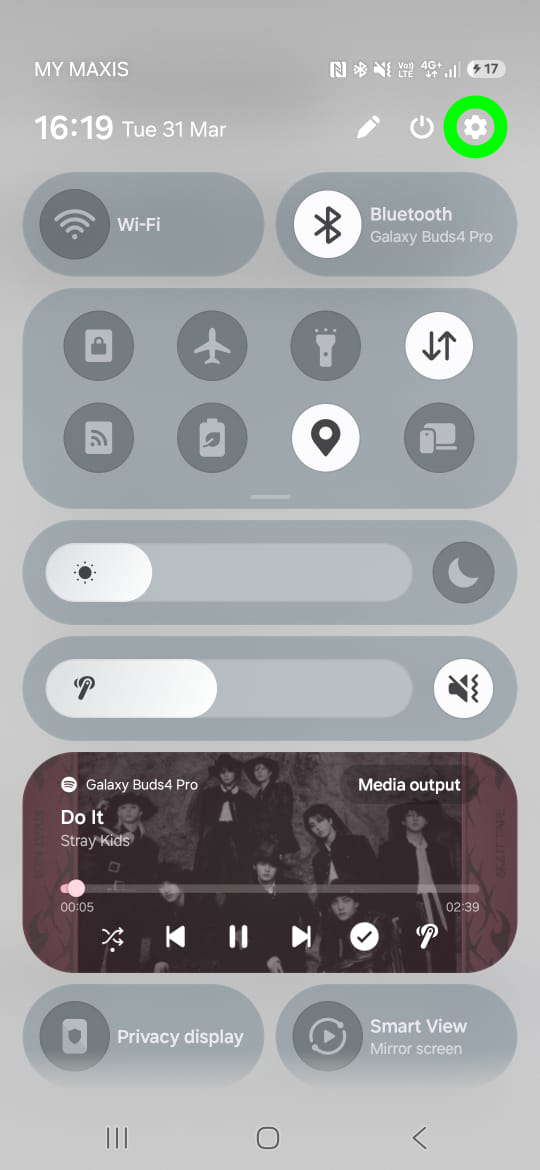
You may be prompted to enable Bluetooth if you haven't by tapping 'Turn on'.
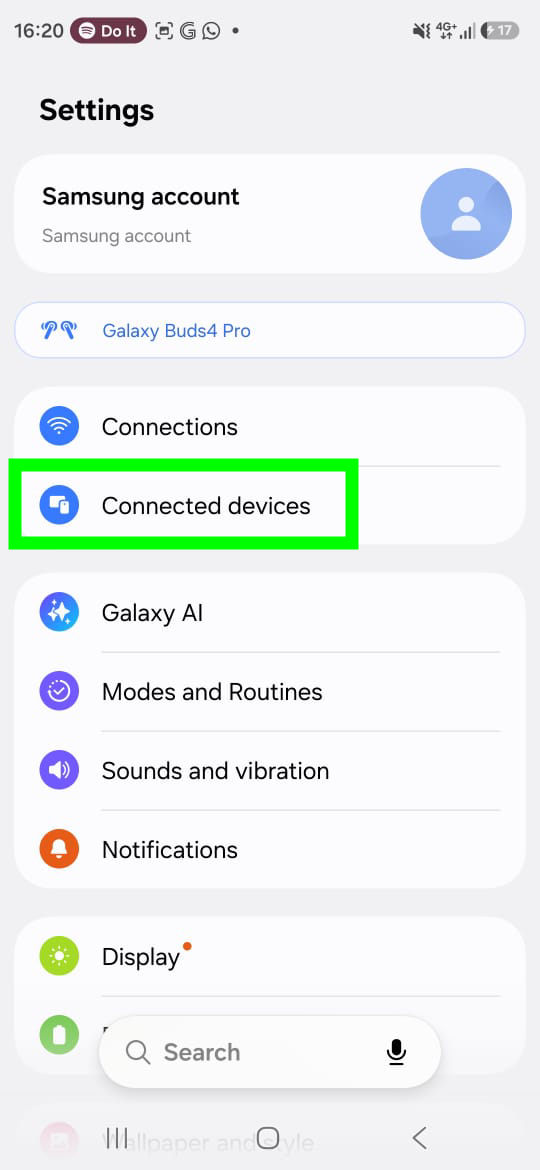
1.2: Navigate to Connected devices
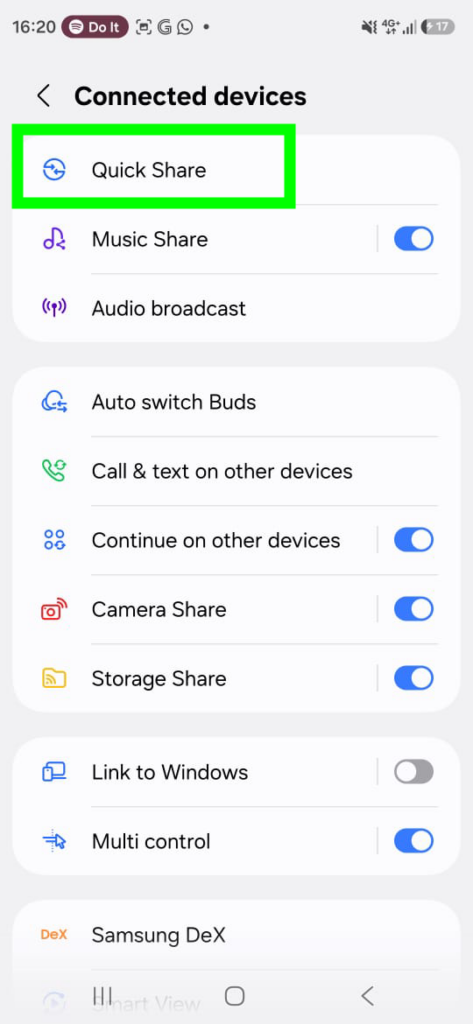
1.3: Tap on Quick Share
1.4: Look for the new "Share with Apple devices" toggle and switch it on
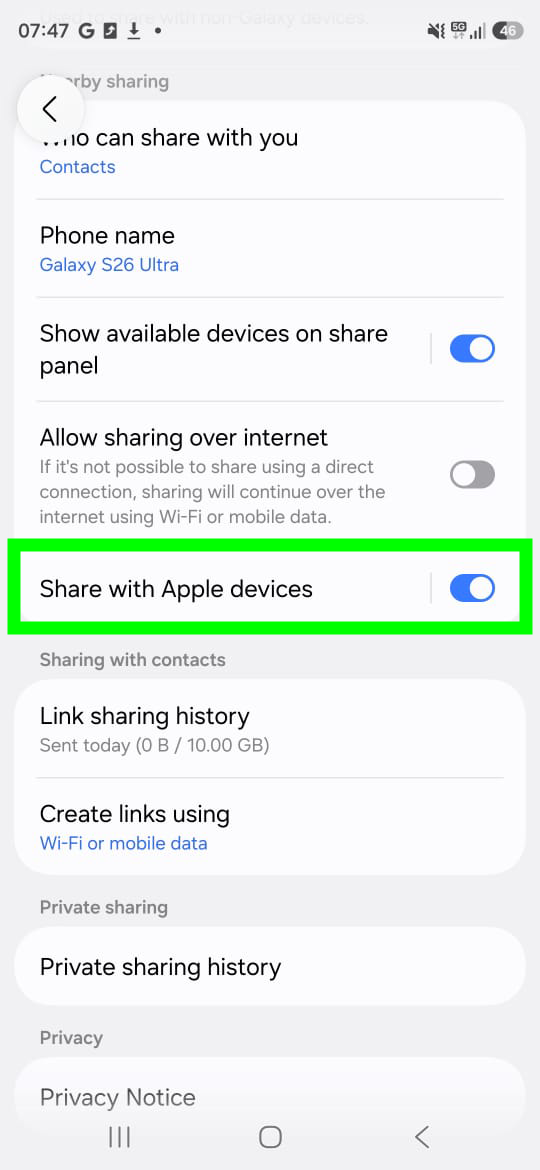
Pro Tip: Make sure your "Who can share with you" is set to Contacts Only or Everyone so you do not get random memes from strangers on the LRT!
STEP 2: Get the iPhone Ready
The iPhone user does not need to do anything special, but they must have their AirDrop settings open.
2.1: Ask your friend to swipe down to their Control Centre
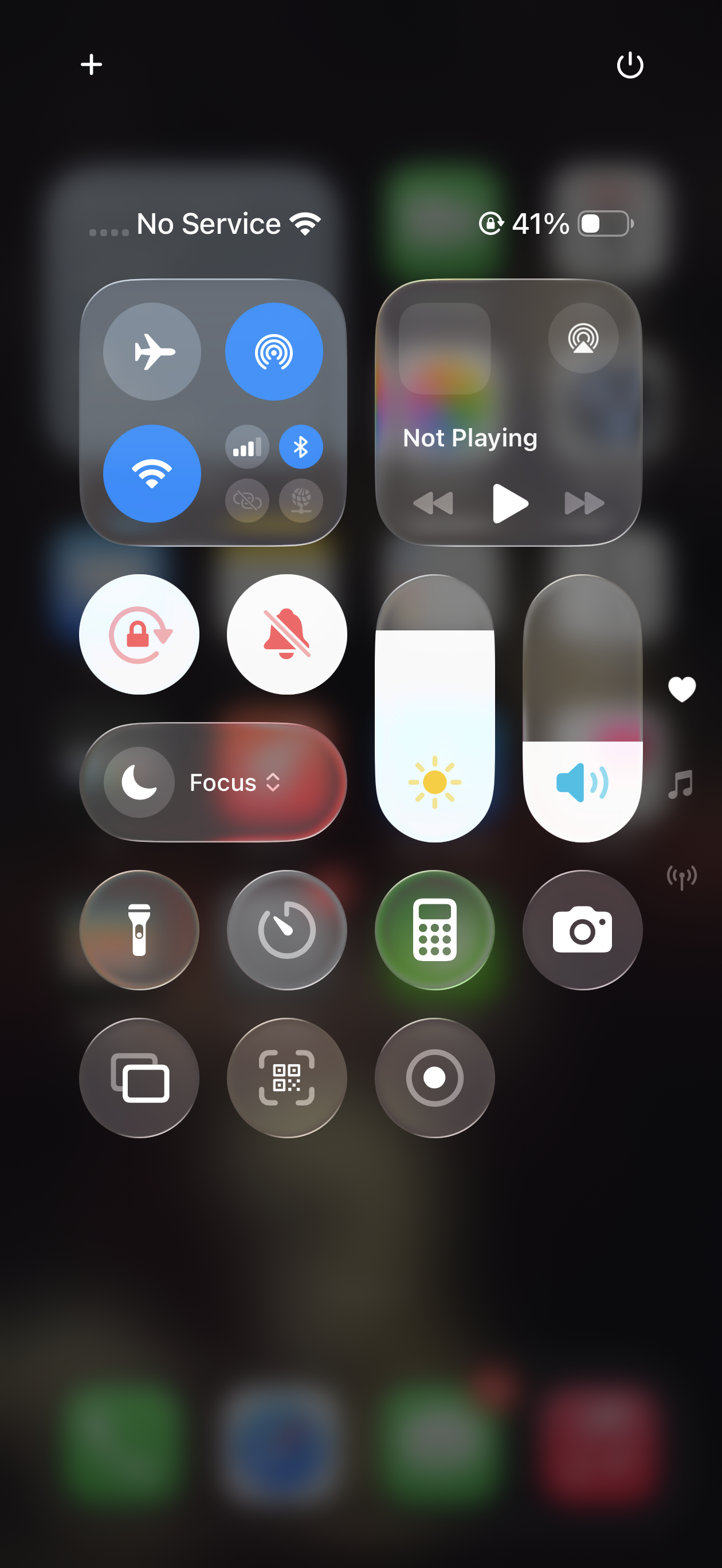
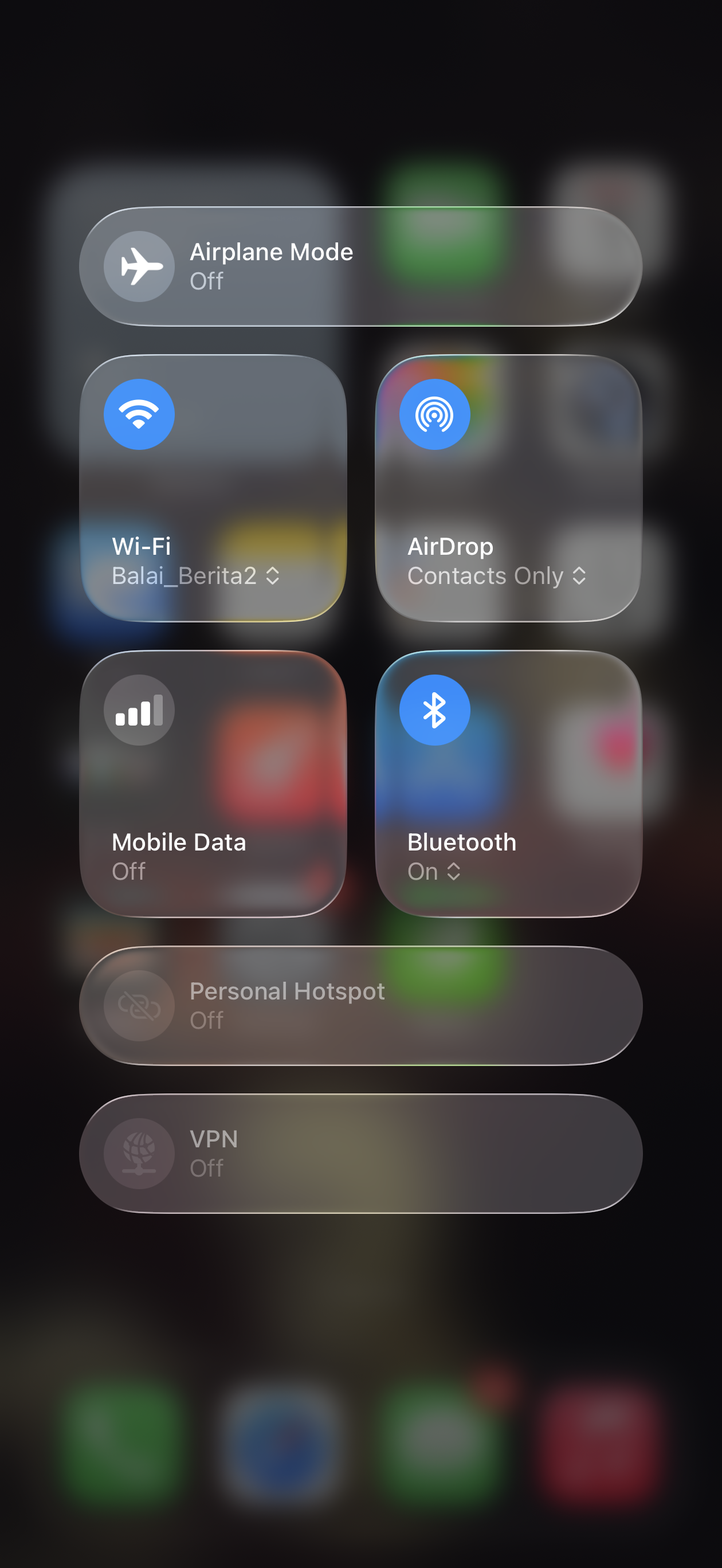
2.2: Long-press the Wi-Fi/Bluetooth box and tap AirDrop
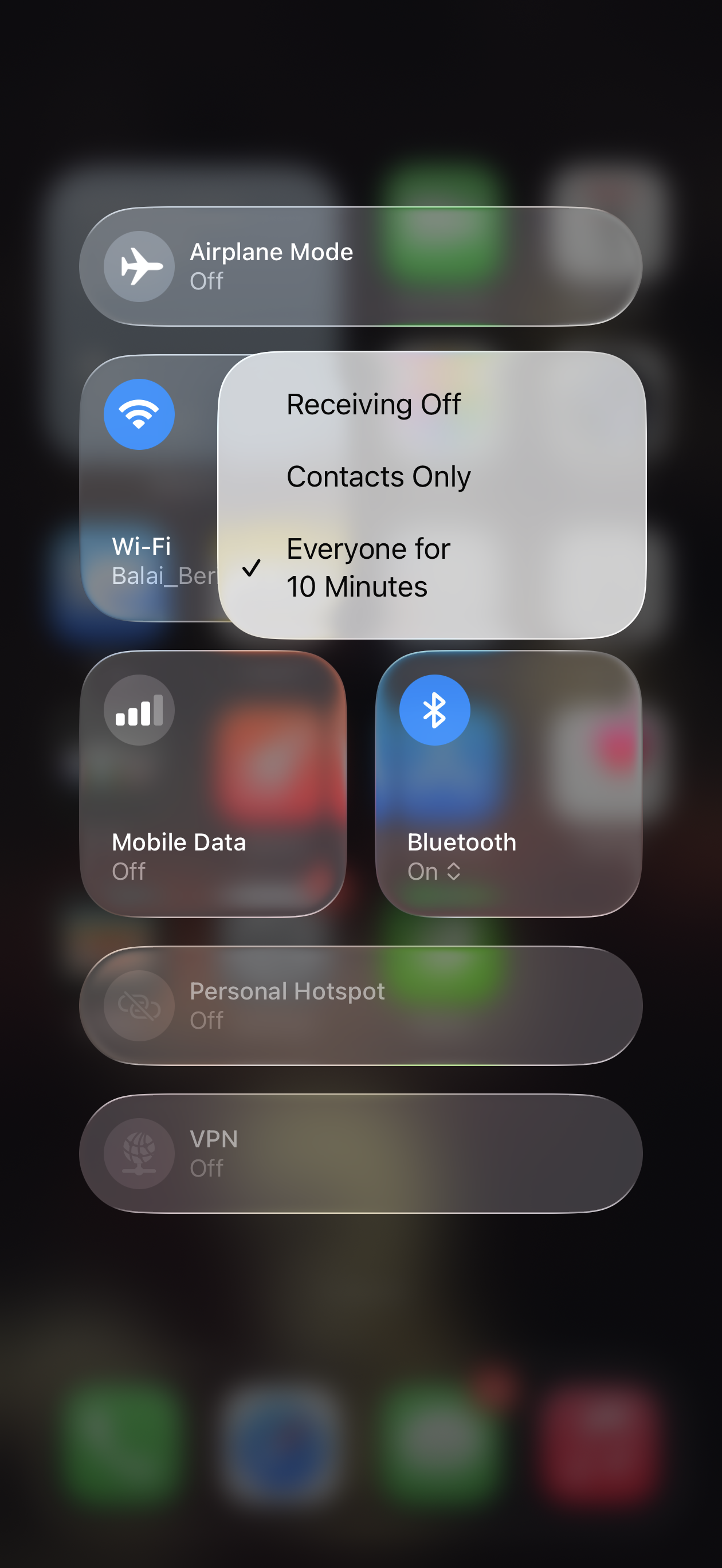
2.3: Ensure it is set to "Everyone for 10 minutes"
STEP 3: Send your files
Now for the easy part.
3.1 Open your Gallery or File Manager and select the items you want to send and then tap on Quick Share
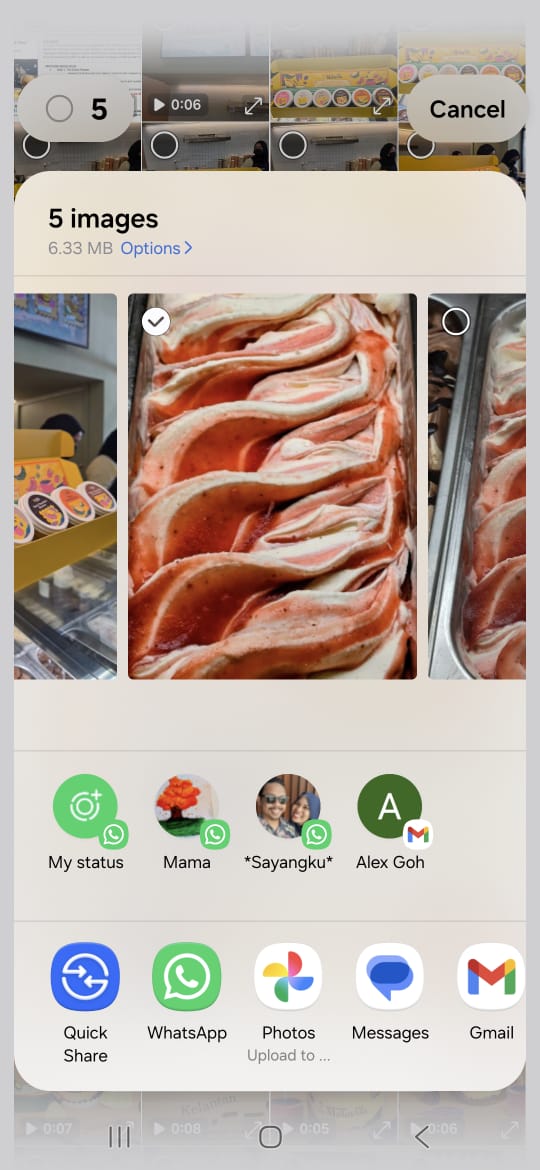
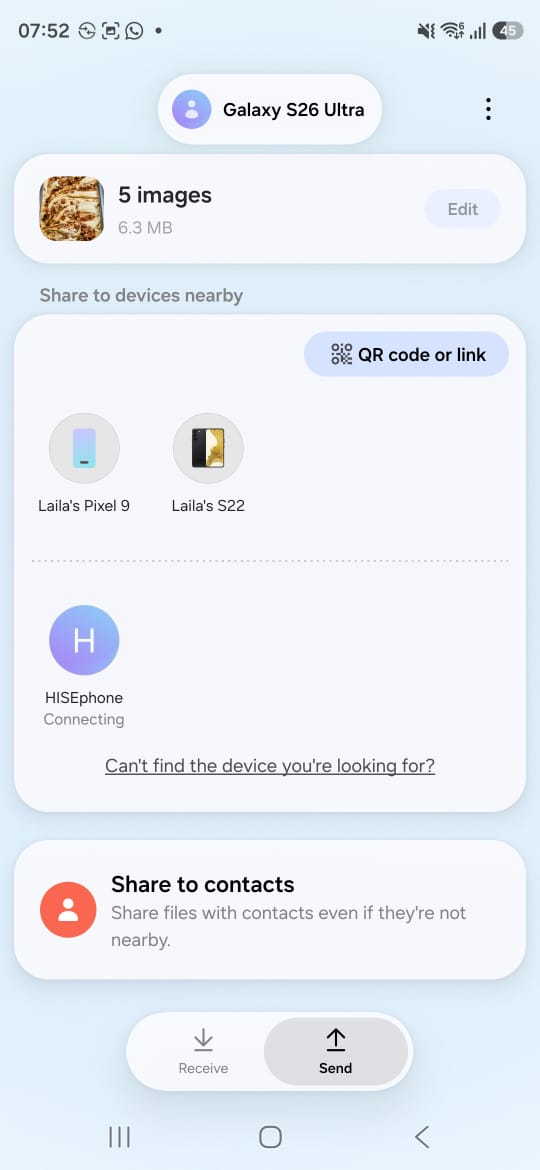
3.2: You will see a new section titled "Nearby Apple Devices"
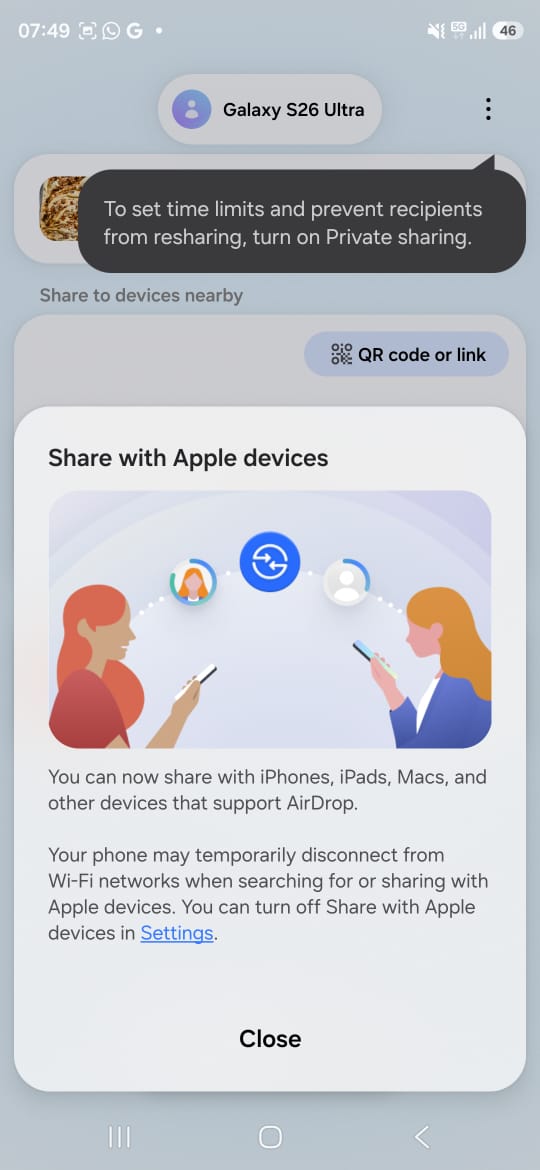
Wait a second for your friend's iPhone to pop up (it will have a small AirDrop-style icon next to it).
3.3: Tap their name, and voila! The iPhone will prompt them to accept the file just like a regular AirDrop.
Previously, sharing files between Samsung and Apple devices used to be challenging. Here's why this is a game-changer.
Your files, especially videos and images retain original quality. They're no longer compressed or blurry. In other words, your 8K footage will actually look like 8K on their screen.
You also no longer need to download third-party apps that drain your battery.
In terms of speed, it's quick. It uses a direct Wi-Fi connection, so it is significantly faster than uploading to a cloud drive.
Samsung has officially confirmed that this feature is not staying exclusive to the Galaxy S26 for long
According to tech website Sammy Fans, the feature is being rolled out as part of the One UI 8.5 update.
The following series are slated to receive the "Share with Apple devices" update:
- Galaxy S25 Series (S25, S25+, S25 Ultra)
- Galaxy S24 Series (S24, S24+, S24 Ultra, S24 FE)
- Galaxy S23 Series (S23, S23+, S23 Ultra, S23 FE)
- Galaxy S22 Series (S22, S22+, S22 Ultra)
- Galaxy Z Fold & Flip Series (Z Fold 7, Z Flip 7, and likely generations 6 and 5)
- Galaxy Tab S11 & S10 Series
Expect the feature to be made available to all the models above by June 2026.
